The FarmPortal update of 29 October 2026 expands employee time tracking and the brigade attendance report. In FarmPortal Worker, you can select the team to which an employee will be assigned when starting work. The report lets you check individual statuses and daily activity summaries. The mobile farm input usage report now includes treatment status and product type filters, useful when reviewing fertiliser and plant protection product usage. The browser version now includes a view of licences and account limits. We have also separated access to employee and HR data, added integration with Weenat weather stations and introduced the “Cold store” building type. Below you will find an explanation of the changes and their confirmed locations in the application.
Release date:
What does the FarmPortal update of 29 October 2026 include?
- Time tracking: brigade selection when starting work in FarmPortal Worker.
- Employee attendance: daily brigade summaries and individual work statuses.
- Farm input usage: new filters in the mobile report.
- Employee data: separate employee and HR permissions.
- Licences: an overview of account limits and clearer messages when limits are exceeded.
- Weather data: Weenat integration and wind direction in AgData readings.
- Farm buildings: the option to select the “Cold store” type.
Employee time tracking – brigade selection in Worker
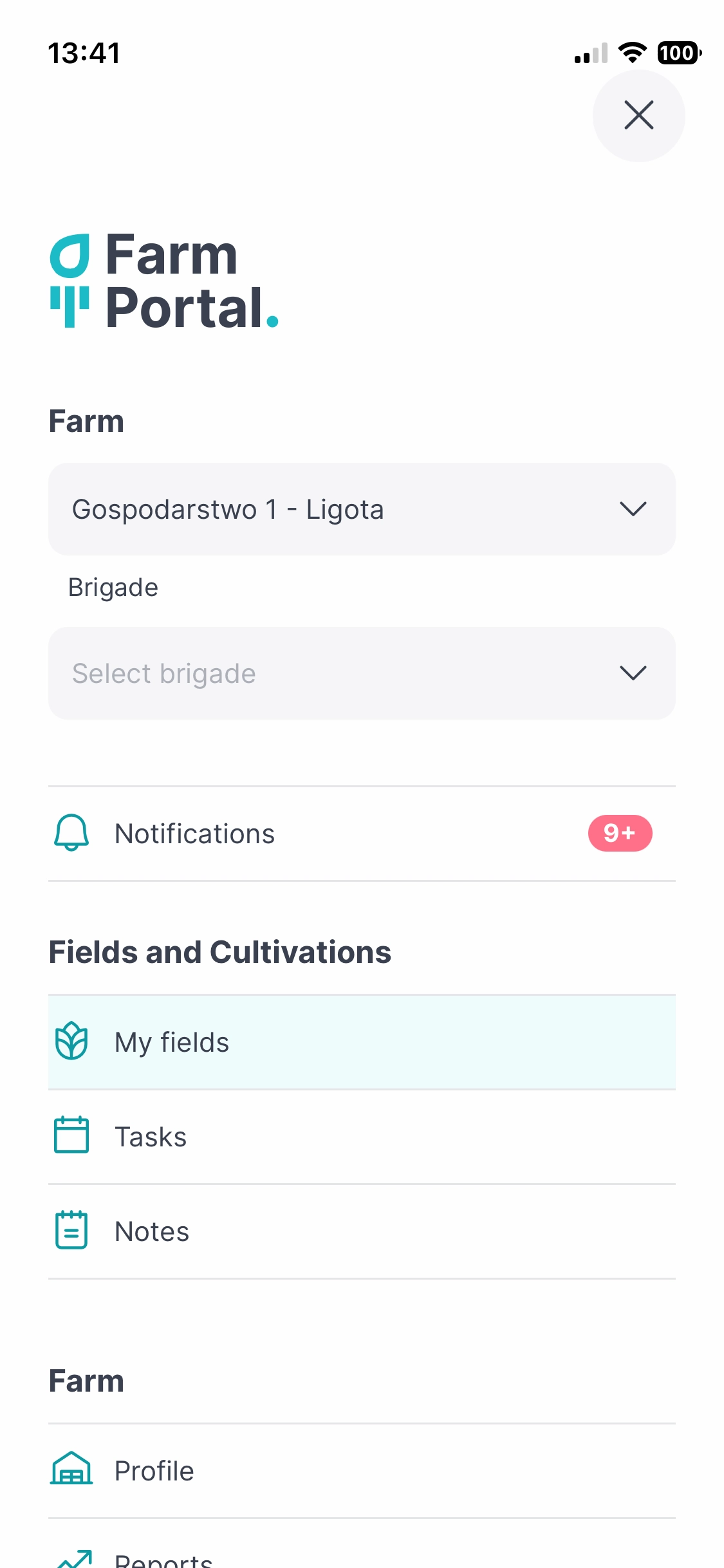
FarmPortal Worker lets you select the brigade to which an employee will be assigned when starting work. The selected team is linked to the new time entry, and the assignment change is recorded in the brigade membership history.
This is useful when changing work locations. After finishing work in the field, you can select a warehouse brigade and start another entry for warehouse work.

How do you start work in a selected brigade?
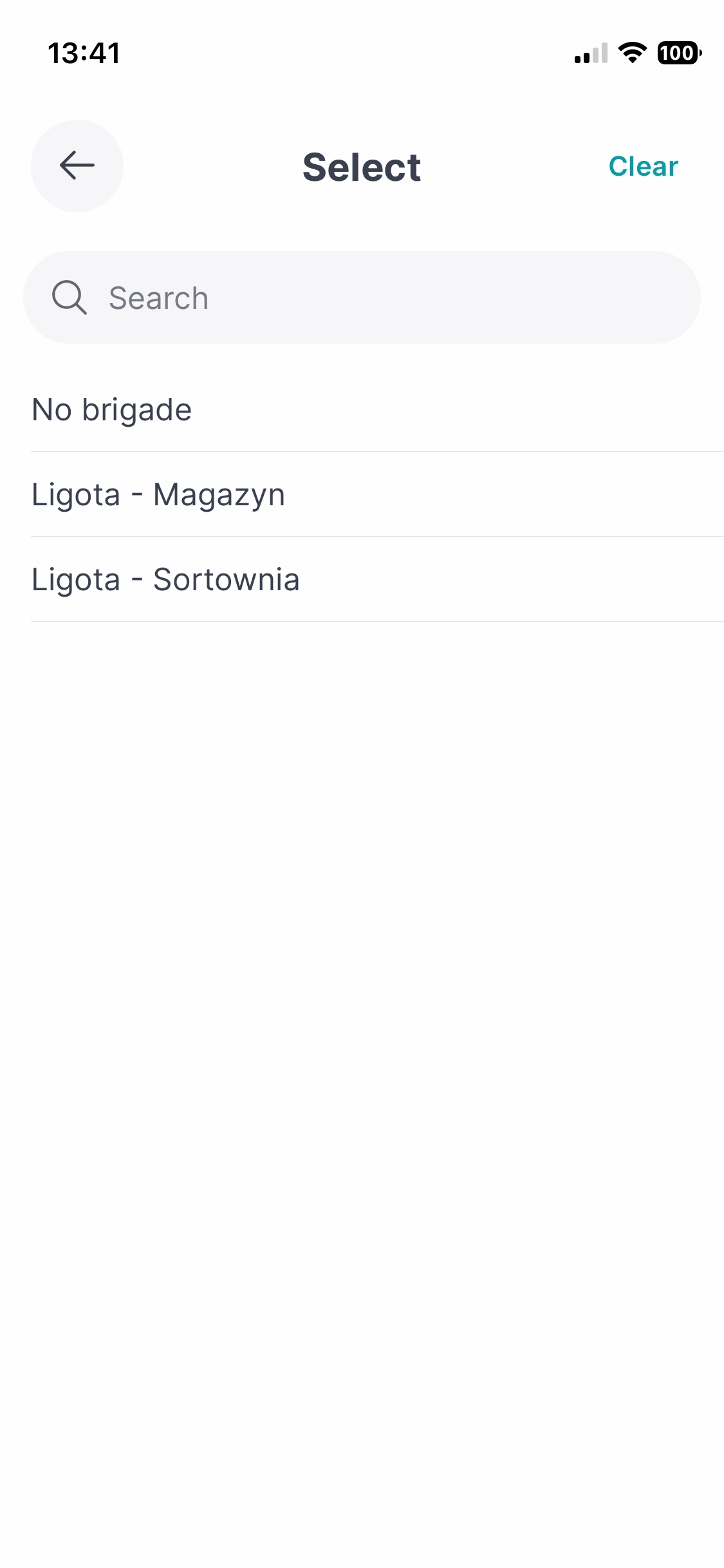
- Open the FarmPortal Worker side menu.
- In the “Brigade” field, select the team to which you want to assign the employee.
- In time tracking, select the employee from the list or scan their code.
- Press “Start”.
If no brigade is selected, the application uses the employee’s existing assignment. The “Stop” button ends the active time entry in the brigade in which it was started.
Where to find the feature: FarmPortal Worker → side menu → Brigade.
For more information on recording work and settling seasonal employees’ pay, visit the FarmPortal Worker page.
Brigade attendance report – monitoring recorded work
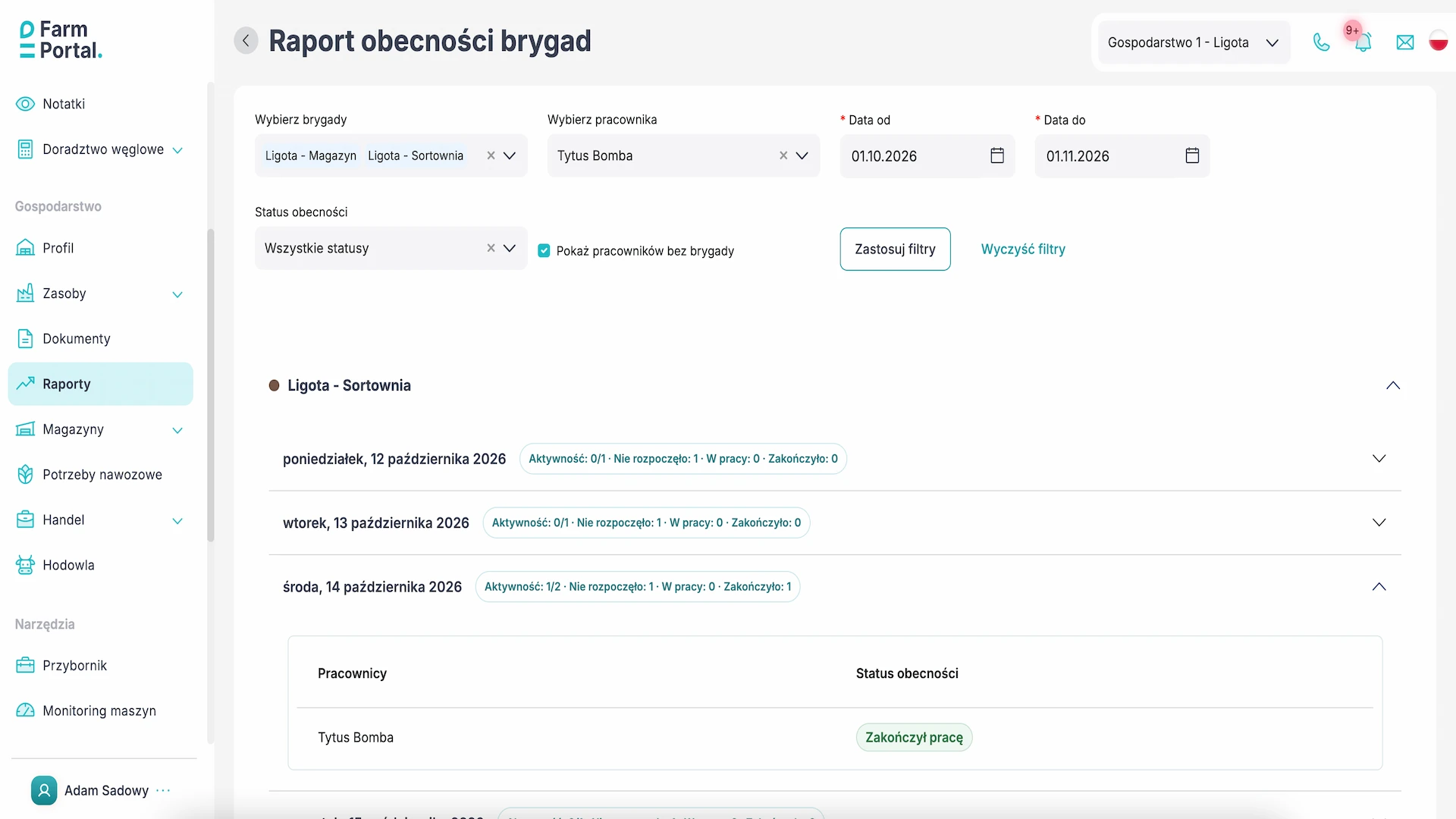
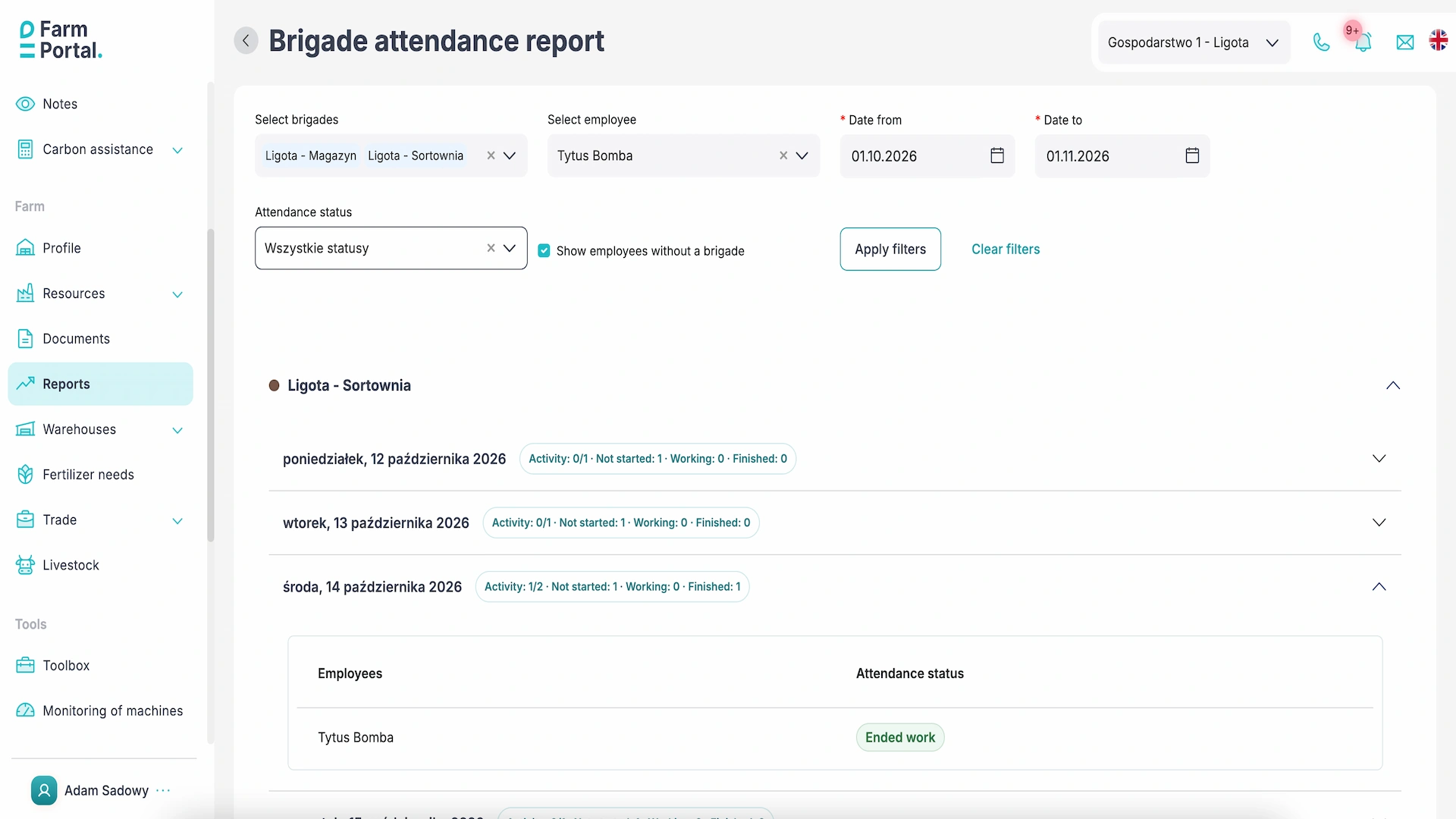
The brigade attendance report shows daily activity summaries and each person’s work status, grouped by brigade. Expand a selected day to check who has started work, who still has an open time entry and who has finished.
The report takes brigade membership history into account. An employee’s entries are shown in a given brigade from the date they were assigned to it.
How should attendance statuses be interpreted?
| Work status | Meaning in the report |
|---|---|
| Work not started | No start of work has been recorded for that day. |
| Working | A time entry has been started and remains open. |
| Work finished | The end of work has been recorded. |
How do you filter the brigade attendance report?
- Go to Farm → Reports → Brigade attendance report.
- Select one or more brigades and set the date range.
- If needed, select an employee and an attendance status.
- Tick “Show employees without a brigade” if you want to include them.
- Click “Apply filters” and expand the details for the selected day.
The “Clear filters” option restores the report’s initial settings. You can use it after checking one person to review team data again.
Fertiliser and plant protection product usage in the mobile report
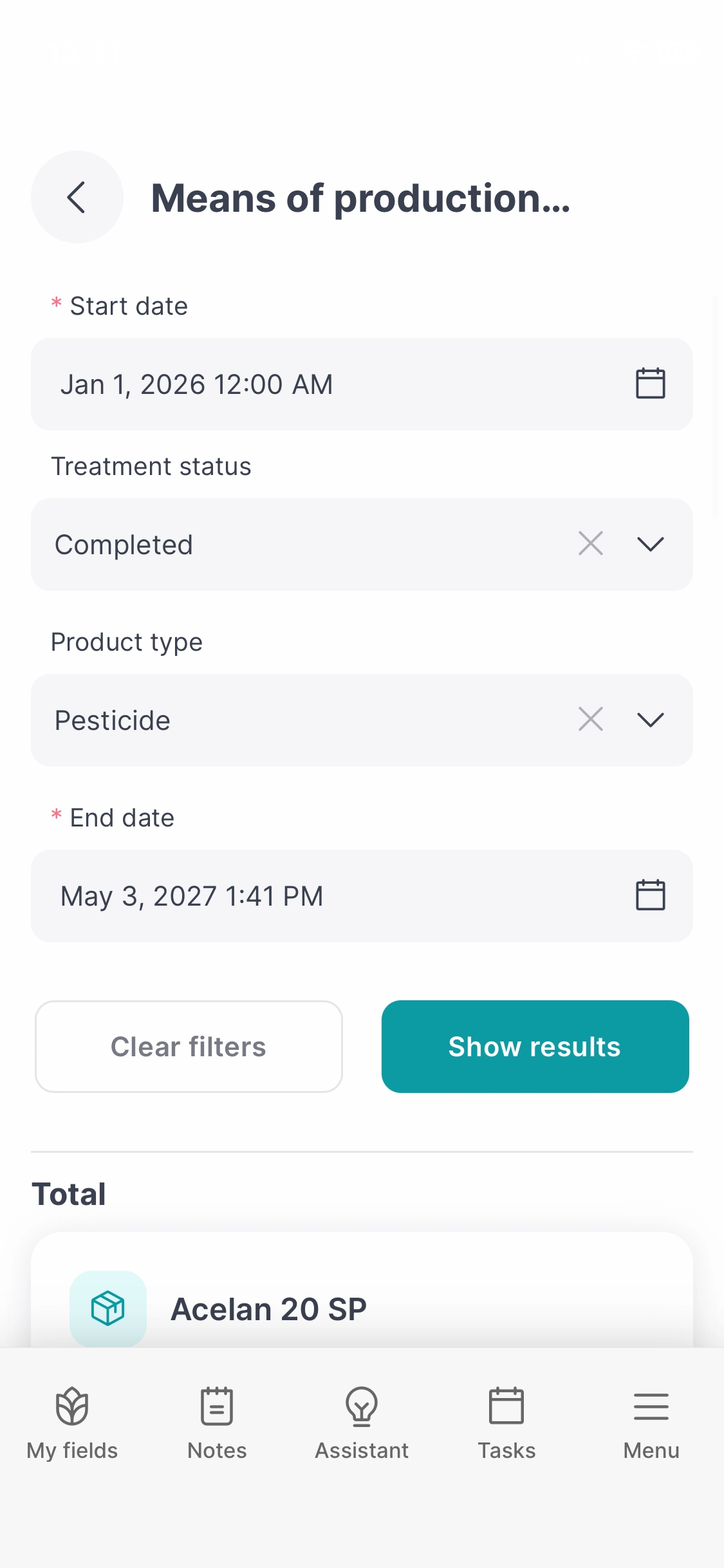
The mobile farm input usage report lists quantities of fertilisers and plant protection products recorded in the treatment register. The update adds two filters that let you narrow down results by treatment status and product type.
You can select completed treatments and plant protection products to review their recorded usage over a specific period. You can prepare a summary of fertiliser usage in the same way.
What data does the farm input usage report show?
- total quantities of individual products in the “Total” section;
- names of the fertilisers and plant protection products used;
- quantities assigned to individual entries;
- information about the treatment and field.
How do you check farm input usage on your phone?
- Open the farm input usage report in the Reports section.
- Set the range in the “Start date” and “End date” fields.
- Select “Treatment status” and “Product type”.
- Press “Show results”.
- Review the product totals and the list of their uses.
User permissions – access to employees and HR data
We have separated employee and HR permissions. The person managing access can specify who can view basic information and working time, and who can also access pay or advance payment data.
What does each access scope include?
- Employees: basic information, working time, notes and brigades, according to the group’s permissions.
- HR: additional HR data, including pay, advance payments and employee qualifications, according to the group’s settings.
This separation also affects report availability. The working time report and brigade attendance report are linked to employee access. Pay and expiring qualification reports require the appropriate HR permissions.
In new organisations, the system automatically creates a “Brigade leader” group with a basic set of permissions. Group settings let you adapt viewing and editing access to the user’s tasks.
Where to manage access: FarmPortal browser version → Security.
Viewing licences and limits for an individual farm
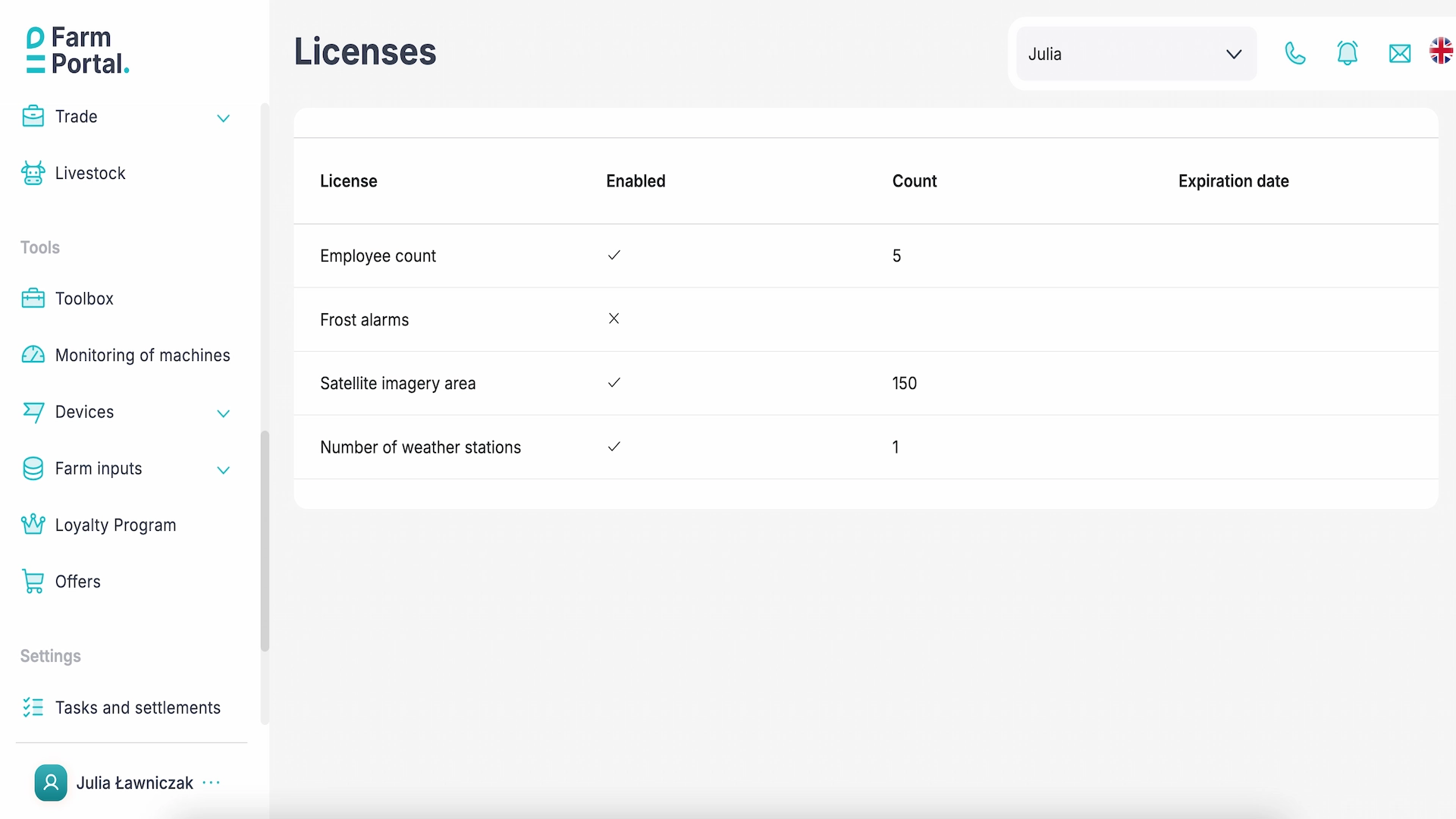
The “Licences” view shows the features and limits assigned to the farm. You can check the employee limit, frost alarm licences, the area allowance for variable rate application maps and the limit for free virtual weather stations.
What limits does the basic / free licence show?
| Licence item | Setting or information provided |
|---|---|
| Number of employees | Up to 5 employees. |
| Frost alarms | Disabled by default. |
| Area of variable rate fertilisation, spraying and seeding maps (VRA) | A total of 150 ha when creating application maps based on Sentinel satellite imagery. |
| Number of free weather stations | 1 virtual station per farm by default |
An application map specifies rates for individual parts of a field. When creating these maps from satellite imagery, the area used counts towards the licence limit. Once the limit is exceeded, the application displays a message about this restriction.
We have also made employee count messages more precise. They indicate a problem with usage of the limit assigned to the account.
Where to find the feature: FarmPortal browser version → Licences.
Weather stations on the farm – Weenat integration and AgData readings
We have added integration with Weenat weather stations. When adding a station, you can select this weather station provider from the list.
The AgData integration now also retrieves wind direction. The provider’s direction labels are converted to degrees, for example north to 0° and east to 90°.
Cold stores in the farm building register
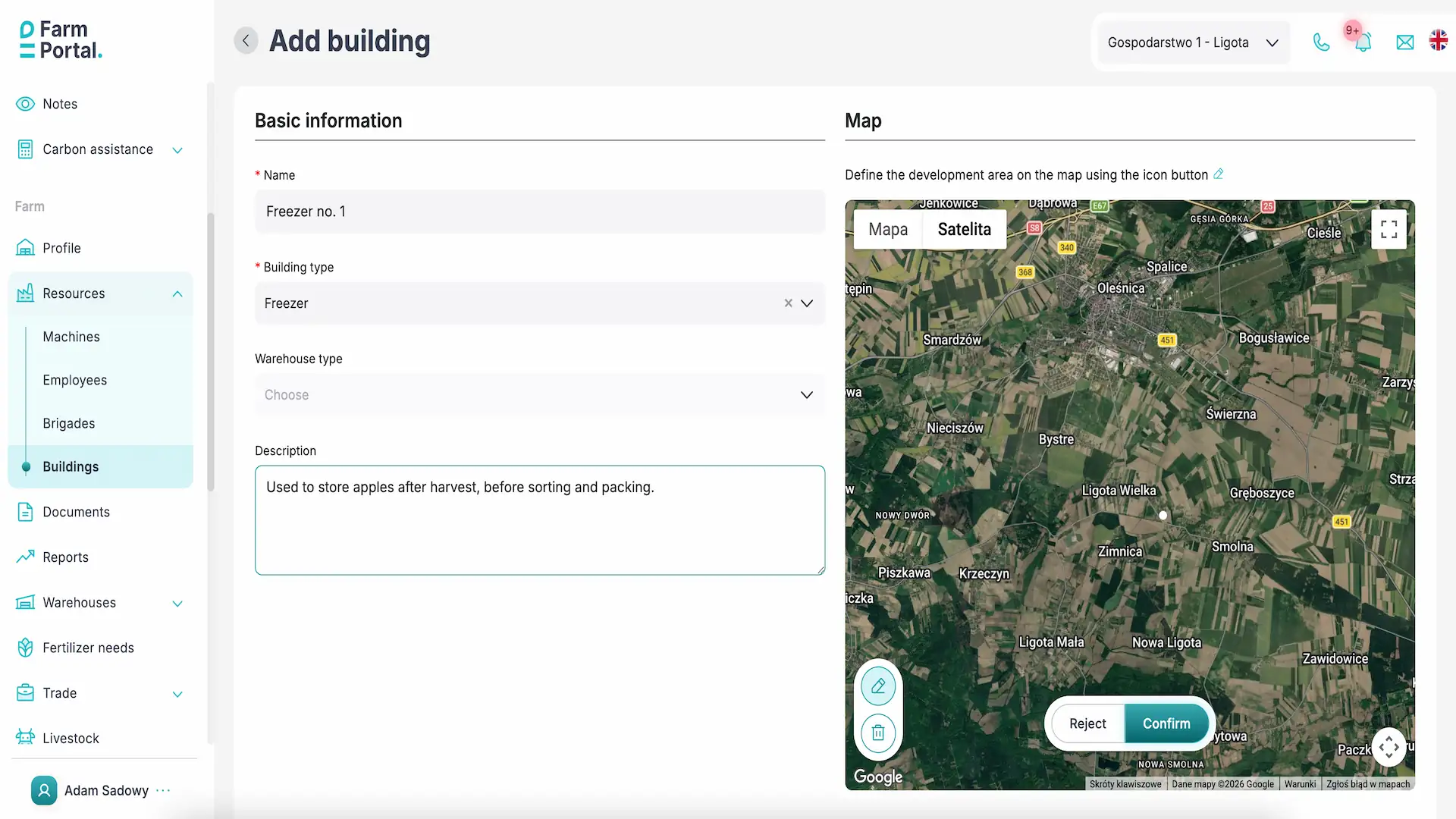
The “Add building” form now includes the “Cold store” type. You can use it to mark a building intended for storing crops under refrigerated conditions and describe its purpose. In the first quarter of 2027, the option to receive goods directly into a cold store as a warehouse type will be added.
The form includes a name, building type, description and a map for defining the building footprint. The description can indicate which products are stored in the building and at what stage after harvest.
Where to find the feature: Farm → Resources → Buildings → Add building.
Other changes and improvements
- Dryers: recipe and drying process configuration has been added through the OPC integration for devices covered by the integration.
- Warehouse products: units for recording products on pallets have been added.
- Machine monitoring: support for data from Teltonika, Hydra System, AgroOsa and Ynnova devices has been expanded, and handling of missing integration data has been improved.
- Deleting an employee: the system closes an open time entry when the employee is deleted. Handling of deleted employees in attendance reports has also been improved.
- Notes and documents: their handling in employee records and access control have been improved.
- Weather stations: station deletion has been fixed.
- Application maps: map creation from satellite imagery has been fixed.
- Navigation and forms: navigation to the “Cultivations” tab while data is loading, postcode formats for selected countries, and translations of permissions and forms have been improved.
- FoodPass: forms, lists, filters, dropdown menus, pagination and translations have been improved.
Update summary
The changes connect brigade selection when starting work with a more detailed view of team attendance. Additional mobile report filters let you narrow down farm input usage summaries, while the licences view shows the limits assigned to the account.
Frequently asked questions
How do you assign an employee to a brigade when starting work?
Select a brigade in the FarmPortal Worker side menu, then select the employee in time tracking and press “Start”. The employee will be assigned to the selected team, in which a new time entry will begin.
What does the “Working” status mean in the brigade attendance report?
The “Working” status means that the employee’s time entry has been started and remains open.
How do you check fertiliser usage in the FarmPortal mobile app?
Open the farm input usage report in the Reports section, set the date range and select fertiliser as the product type. After pressing “Show results”, you will see product totals and details of their use.
Where can I check the employee limit on my FarmPortal account?
You can check the limit in the “Licences” view in the FarmPortal browser version, under “Number of employees”.
Does deleting an employee close their active time entry?
Yes. If the employee has an open time entry, the system closes it when the employee is deleted.
Try the new features in FarmPortal
Review attendance for a selected brigade, check farm input usage on your phone or open your account’s licence overview.